Payroll Settings
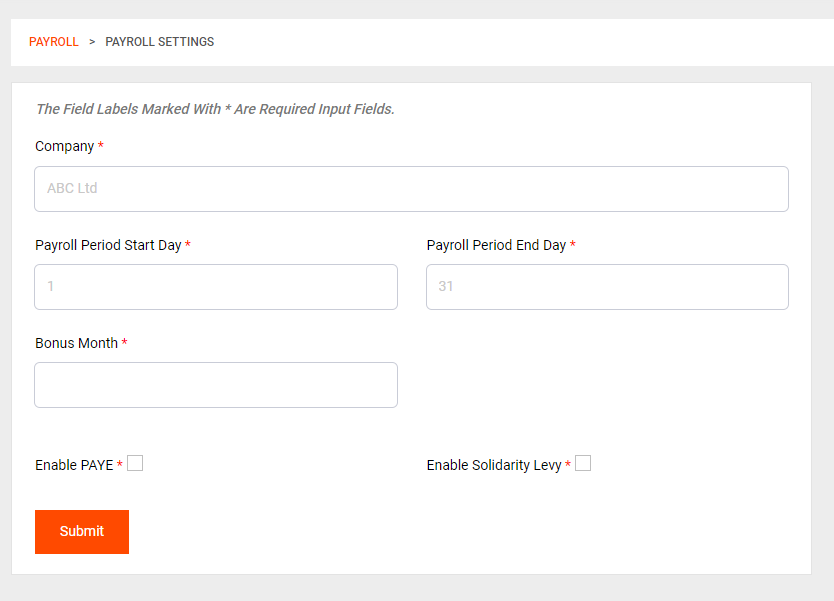
To access the payroll settings, navigate to Payroll > Payroll Settings.
To configure the payroll settings for your company, follow these steps:
Choose Company: Select the company for which you want to set the payroll settings. If you manage multiple companies, ensure you pick the correct one.
Payroll Period Start Day: This setting determines the starting day of your pay cycle. For example, if your company pays from the 25th of the current month to the 24th of the next month, set the Payroll Period Start Day as the 25th.
Bonus Month: The Bonus Month is the specific month in which bonuses are given out to employees. Governmental guidelines often recommend December as the standard month for bonuses, but your company may have different practices based on unique requirements.
Enable PAYE: By enabling this option, the system will calculate Pay As You Earn (PAYE) taxes for employees. PAYE is a system that deducts income tax contributions from employees' salaries.
Enable Solidarity Levy: The Enable Solidarity Levy option was a requirement before the 2023-24 payroll. If your company still needs to account for Solidarity Levy, you can turn this option on. Otherwise, if it is no longer applicable to your payroll, you can safely turn it off.
Make sure to save your changes after adjusting the payroll settings to ensure they take effect for the selected company.
Run Payroll
Please note that any changes made to payroll settings should comply with local tax laws and regulations. If you are unsure about certain settings or have any questions regarding payroll calculations, consider seeking advice from a financial or tax professional.
With this, you are ready to process the payroll. To run the payroll, go to Payroll > Run Payroll, select the desired month and company, and initiate the payroll process.
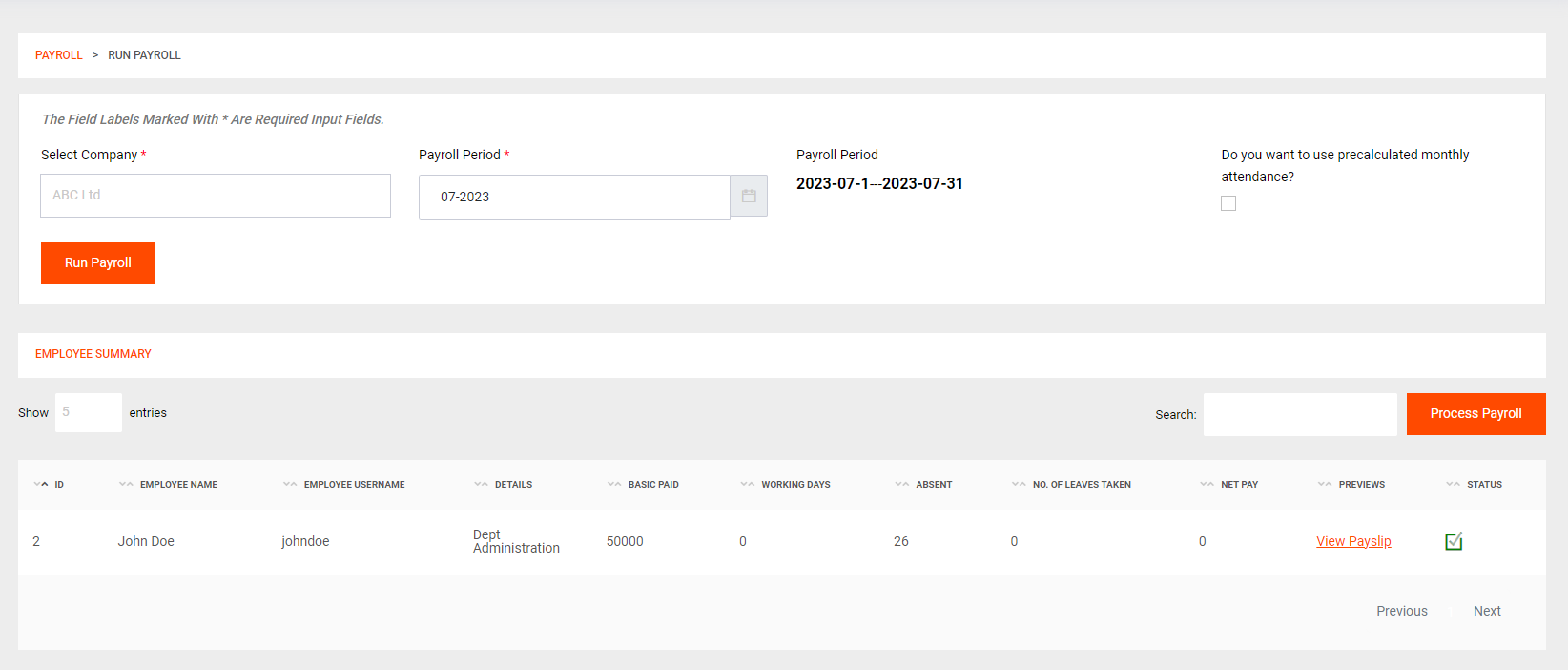
Please note that running the payroll will calculate employee salaries, deductions, and other payroll-related components based on the settings you have configured. Review the payroll summary before finalizing the process to ensure accuracy.
You can view the payslips of individual employees to confirm that everything is as expected by clicking on View Payslip. To finalize everything, click on Process Payroll.
If, after processing the payroll, you identify any discrepancies or need to make changes, you must authenticate the request to maintain data integrity. Only authorized personnel should have access to make such changes.
Please exercise caution while making changes after processing payroll, as this may impact financial records and employee compensation. Ensure that any modifications are in compliance with company policies and relevant regulations as you will no longer have access to the older processed payroll.
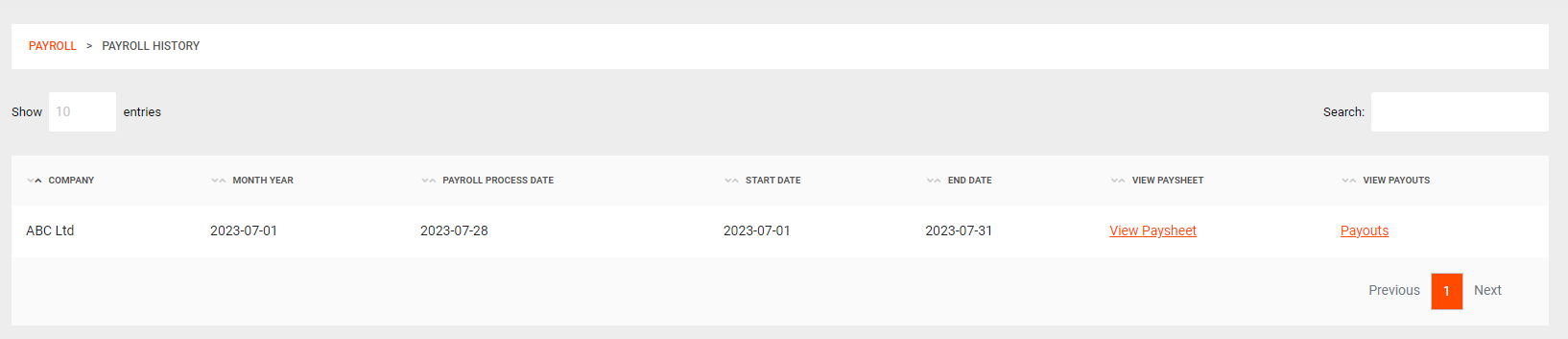
You can now view your payroll in Payrolls > Payroll History:
Paysheets
The paysheet is summary of all the employees' payrolls. You can view it by clicking View Paysheet for a specific month.
To view the Employer's Contribution, you can go to Payroll > Employer Contribution, and select your Pay Period.

With this you are ready to fill your MRA Reports.